
Blog · 16 November 2026
The IT Week — a Windows flaw with no fix yet, Check Point firewalls attacked since late October, and how to roll back after an update
The weekly recap for people who use IT every day without wanting to spend their days on it: two serious flaws, the problems with the latest Windows updates, a reminder about old computers and a practical tip. Let's begin.

📰 The week's news: Windows SignDrop with no fix and Check Point firewalls under attack

On 12 November a researcher, Abdelhamid Naceri, published a Windows flaw called SignDrop: it lets someone who already has access to the computer, even with a normal account, gain the highest privileges («SYSTEM» level). By his estimate about 80% of Windows installations are vulnerable; he tested it on Windows 11 26H2 and Windows Server 2025. At the time of the report Microsoft has not yet released a fix: BleepingComputer writes that the only way forward is to wait for the update. Meanwhile the usual rules apply: install programs only from trusted sources and use an account without administrator rights for everyday work.
Second story, for anyone with a Check Point firewall. On 13 November the company released an emergency fix for the flaw CVE-2026-123039, exploited since late October against «a couple dozen» customers. The affected products are Firewall, Multi-Domain Security Management, Scalable Platforms, Security Gateway and Security Management Server. In the attack described, the criminals got in through the remote-access portal using PHP2Shell (the flaw we covered on 26 October), then took full control and destroyed a VMware ESXi virtual server with a program that wipes data. If you have these firewalls, ask your technician to confirm the fix is installed.
Third story, closer to home: Microsoft confirmed that the November security updates can cause two annoyances. The first is printing: it can fail with documents containing images whose height or width is zero, mainly from Word (Windows 10 and later). The second, which mostly affects people who manage many computers, is an activation error (code 0x80041008) on Windows 10 21H2/22H2, Windows 11 23H2 and Windows Server 2019/2022/2025 when certain licensing commands are used; computers already activated stay activated. For activation Microsoft promises a fix «in the coming days»; for printing, the article gives neither a solution nor a date.
♻️ Refurbished world: before handing over an old computer, wipe the data properly
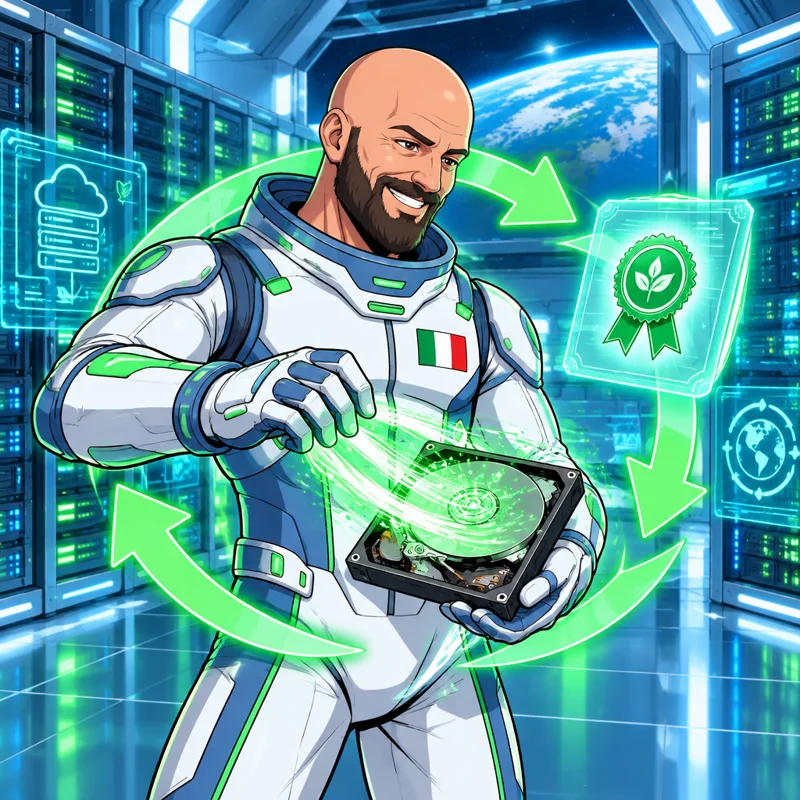
An honest note: this week we did not find new, verifiable news about refurbishing, so here is a reminder that is always valid. A computer that still works deserves a second life: refurbishing it is better, for the environment and for your wallet, than making a new one. But before passing it on there is a step you cannot skip.
Deleting files or «formatting» is not always enough: traces can remain on the disk that suitable programs can recover. That is why secure erasure is used: it overwrites the data so it can no longer be read. It applies to the office PC and the home one, and to phones and USB sticks too.
What to do in practice: if the computer belonged to the company, have the data erased by someone who can issue a certificate, so you have written proof (useful for privacy purposes too). If you are buying a refurbished one, always ask whether the previous data was securely erased. This is exactly the certified data-disposal service we offer: if you have old computers in storage, write to us.
🪟 The Windows tip: how to see installed updates and roll back if something goes wrong

After an update, something that used to work (like printing, this week) can stop working. Windows keeps a list of what it has installed and, in most cases, lets you remove the latest update. One caveat: the news above is a reminder that security updates matter, so uninstall only if the problem appeared right after the update and your technician or Microsoft suggest no other fix.
On Windows 11: open Settings → Windows Update → Update history. Scroll to the bottom to Uninstall updates: a list appears with installation dates. Pick the most recent one and press Uninstall. On Windows 10 the path is Settings → Update & Security → Windows Update → View update history → Uninstall updates.
After removal, the computer may ask to restart. To stop the update installing again straight away, you can use Pause updates in Windows Update for a few days while waiting for the fix. If the update will not come off, or it is a company computer, stop and call whoever manages it.
Sources
- BleepingComputer — New Windows SignDrop zero-day gives hackers SYSTEM privileges
- BleepingComputer — Check Point patches zero-day that lets hackers get root access
- BleepingComputer — Microsoft says November security updates cause printing issues
- BleepingComputer — Microsoft confirms Windows activation failures after November updates